Grouping Items in a List
Last Updated:
Grouping lets you organize items within a list by any property — genre, streaming service, platform, author, or even your own custom Ingredients.
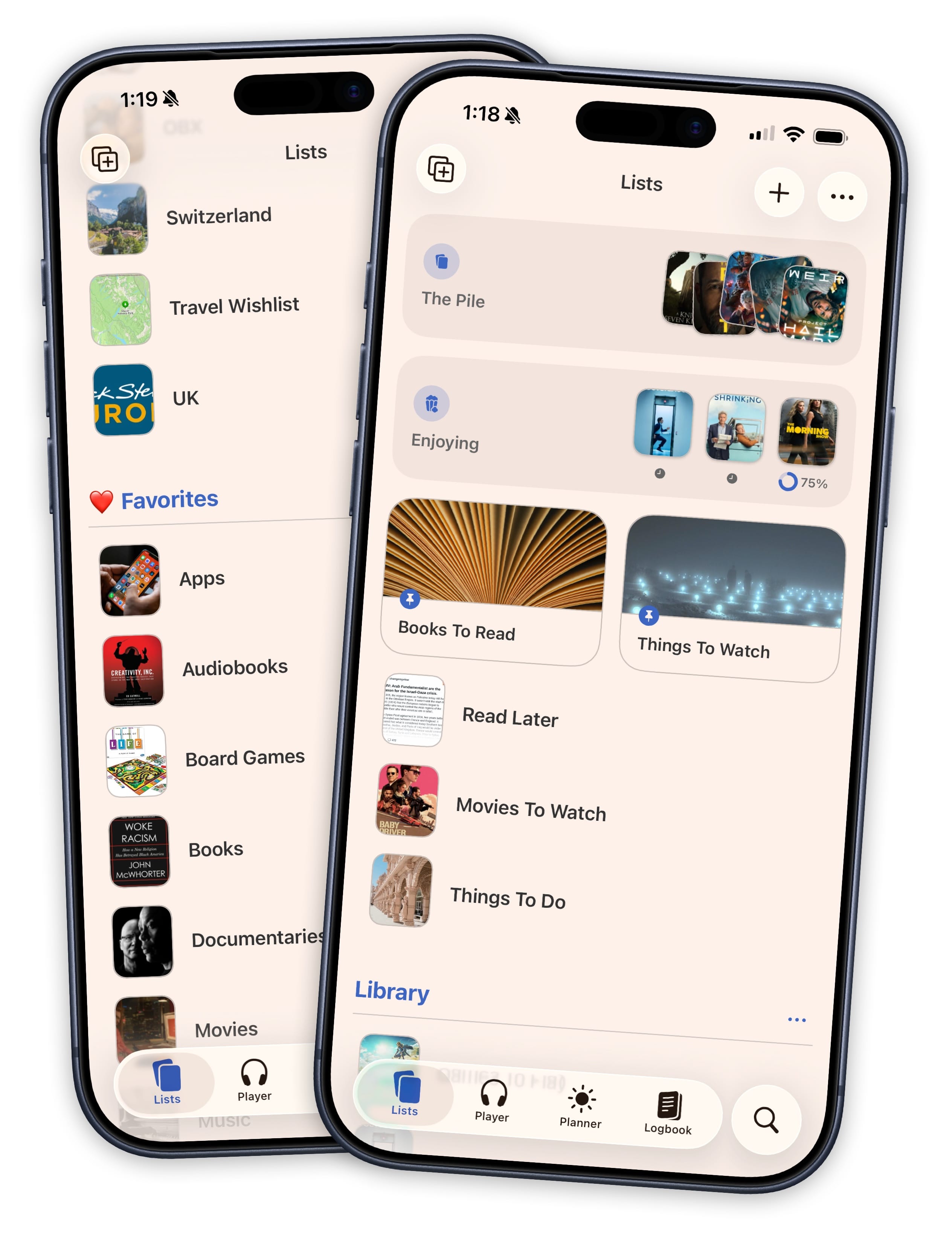
How to Group Items
- Open a list
- Tap ••• in the top right
- Tap “Edit List Details”
- Under the grouping option, choose a property to group by
Items will instantly reorganize into collapsible sections with headers.
Grouping Options
The available grouping options depend on the types of items in your list:
- General — Category, Genre, Release Year, Recency, Progress Status
- TV Shows — Network, Status
- Movies — Streaming Service, Runtime
- Books — Author
- Music — Artist
- Games — Platform, Game Mode, Developer, Publisher, Time to Beat
- Custom — Any single-select or multi-select Ingredient you’ve created
How Groups Work
- Each group gets a collapsible header with an icon
- Items that match multiple values (e.g., a movie on both Netflix and Hulu) appear in each group
- Items without a value for the grouped property go into a “No [Property]” catchall group
- Tap a group header to collapse or expand it
Combining with Filters
Grouping works alongside persistent filters. You can filter a list to show only certain items, and those filtered results will still be organized into groups.