A Highly Flexible Progress Tracking Experience
Five tracking modes let you follow shows, books, games, and movies however you want, from simple checklists to full journaling.
Five Ways to Track. Pick the One That Fits.
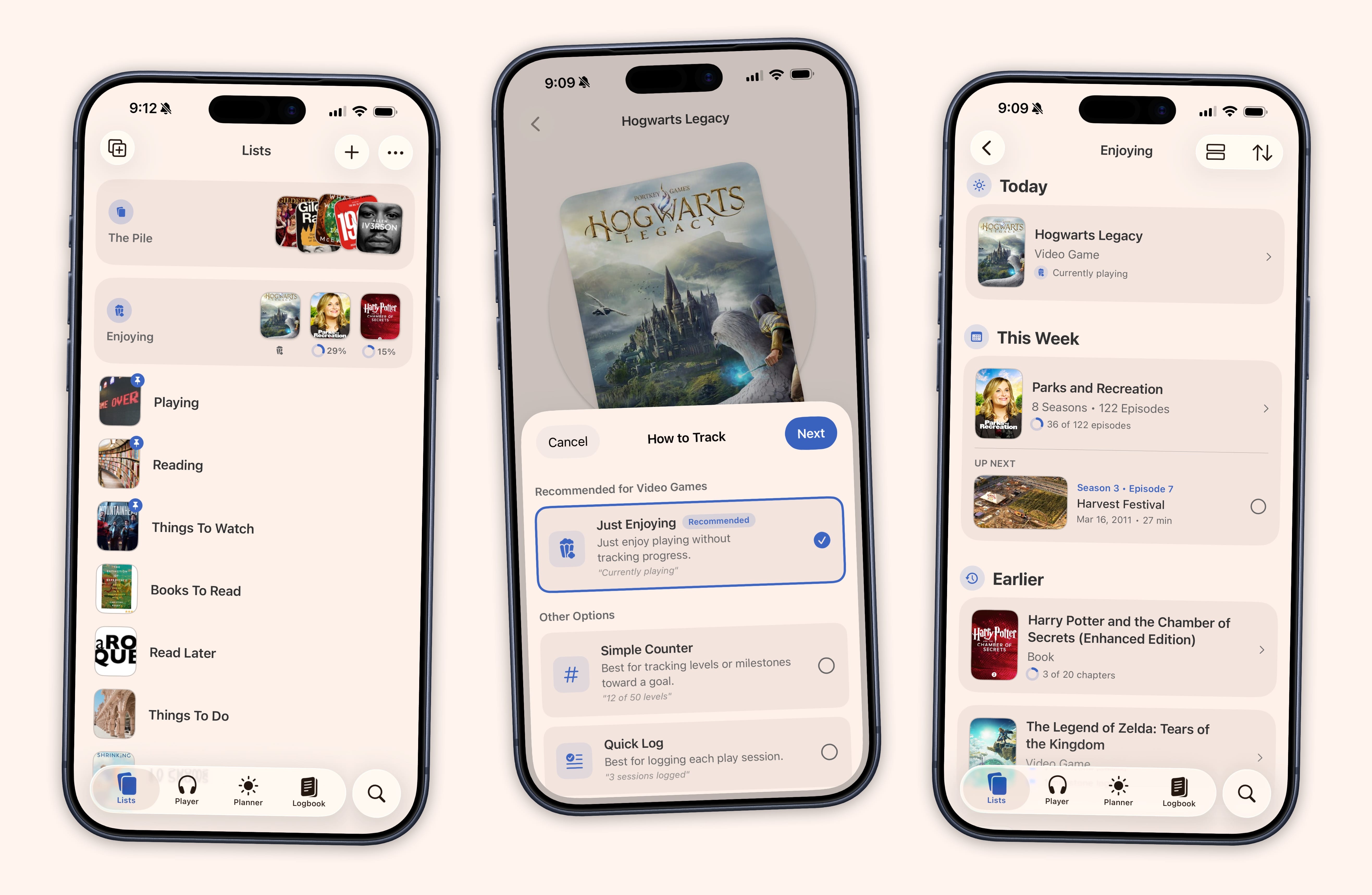
Five ways to track, depending on what fits: just enjoy with zero setup, tap to log, count pages, check off episodes, or keep a journal as you go. Pick one and switch anytime.
Just Enjoying
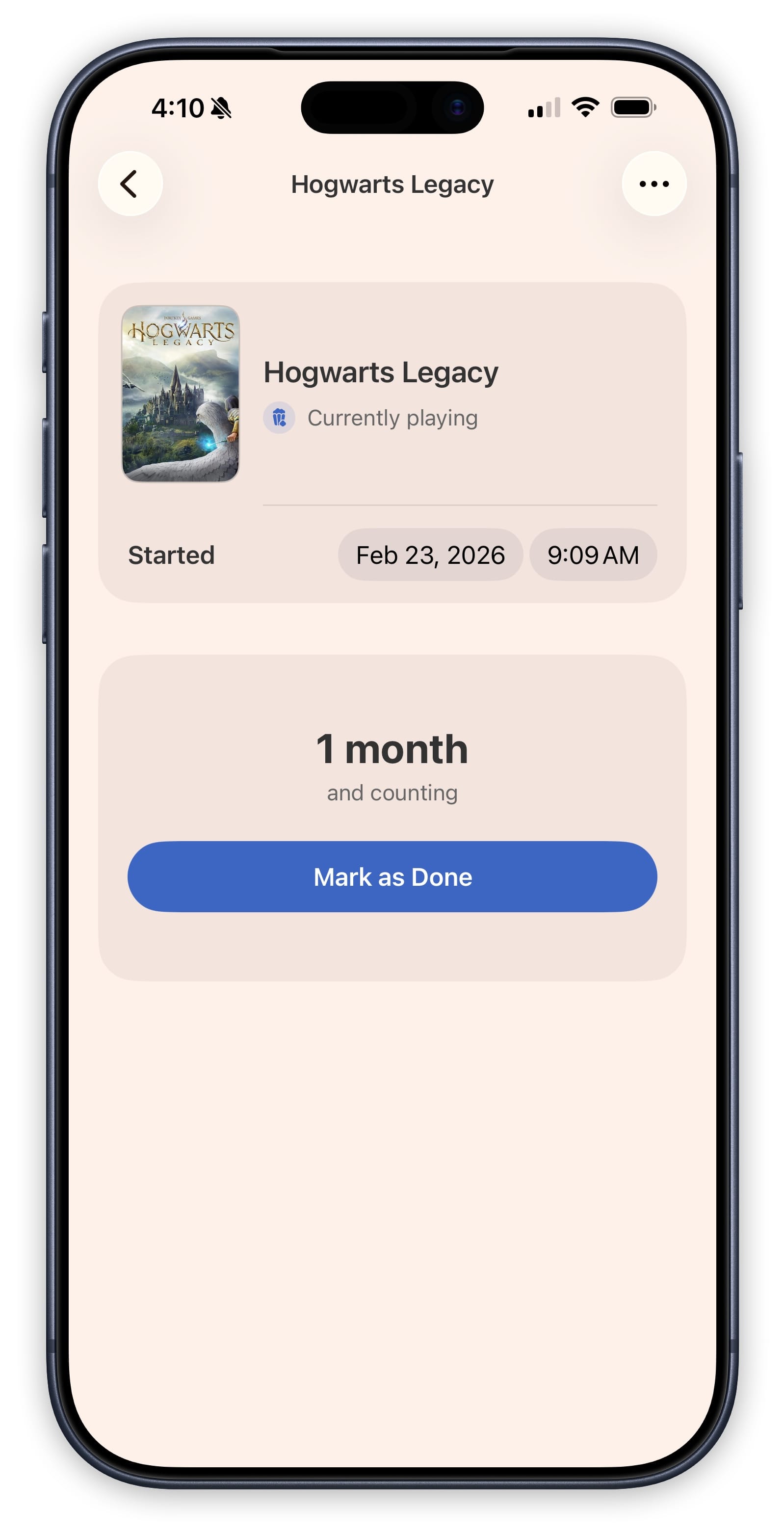
For when tracking would be overkill. Tap to start, watch the movie, tap "Mark as Done." A timer counts the days. No counters, no checkpoints. Perfect for movies, apps, and anything you just want to experience.
Quick Log
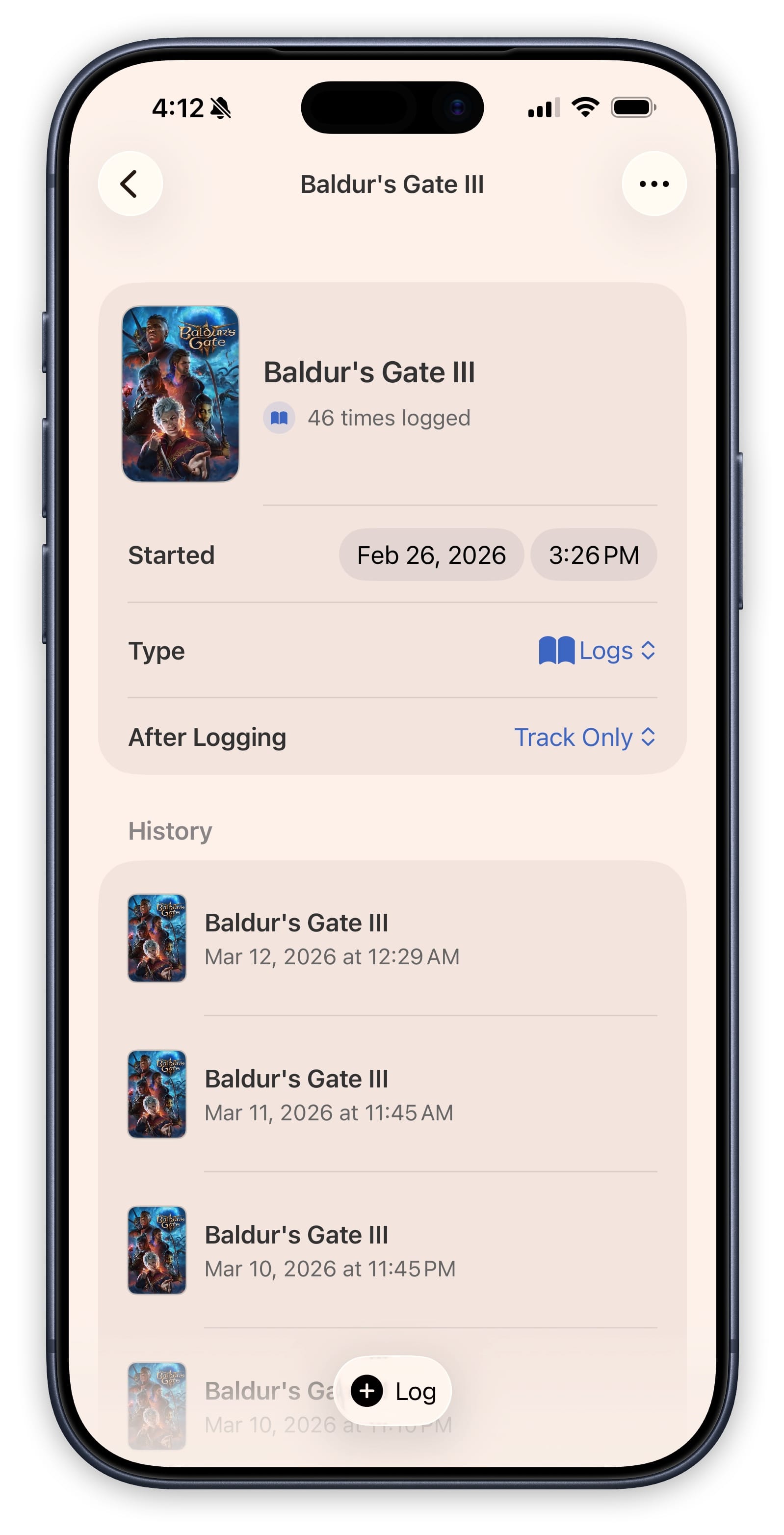
Records a tap. Each one is timestamped in your Logbook. Great for re-reads, replays, or albums you listen to more than once.
Simple Counter
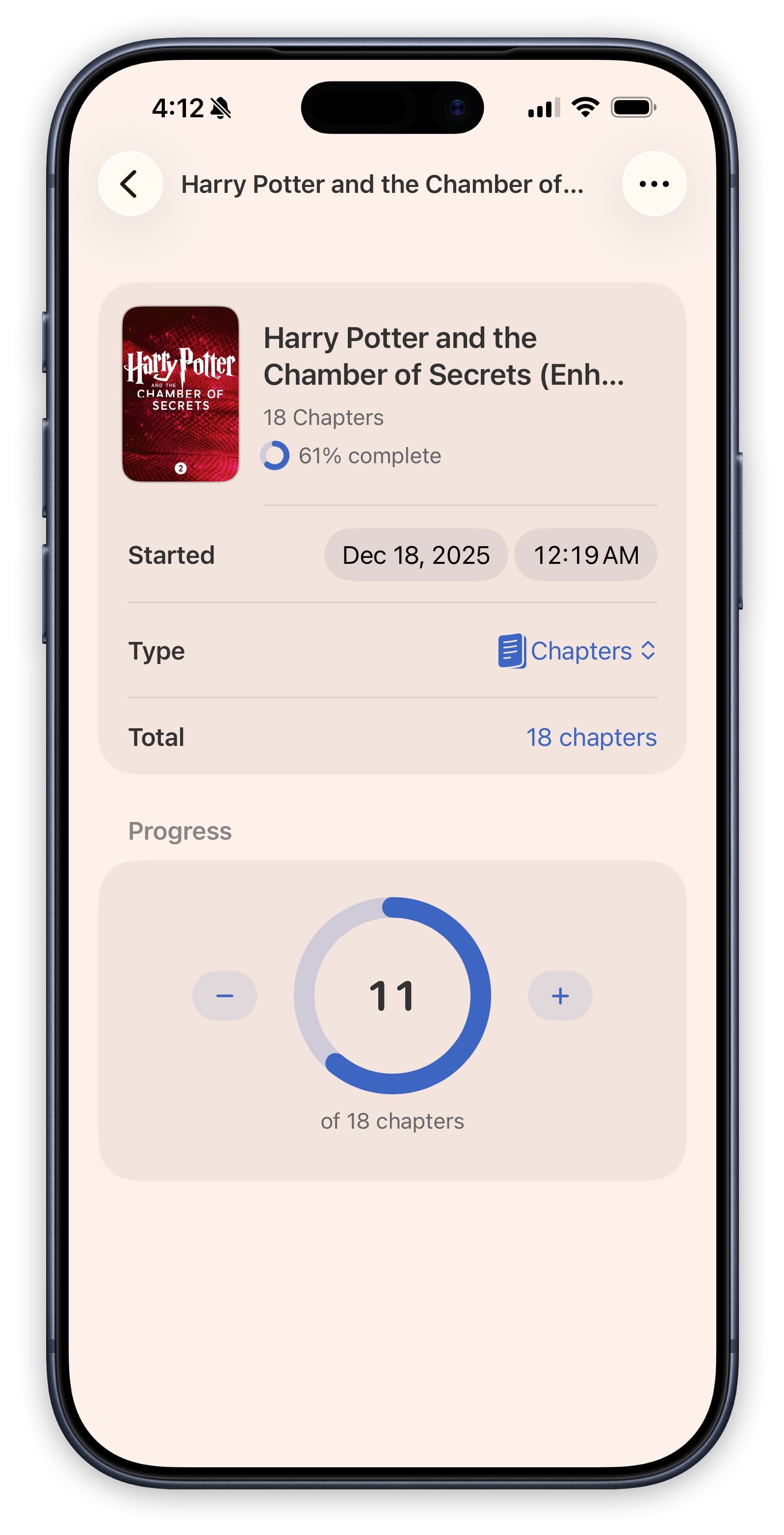
For page-based reading or numeric goals. Set a target — 300 pages — and increment your progress with stepper buttons. A circular progress ring fills as you go.
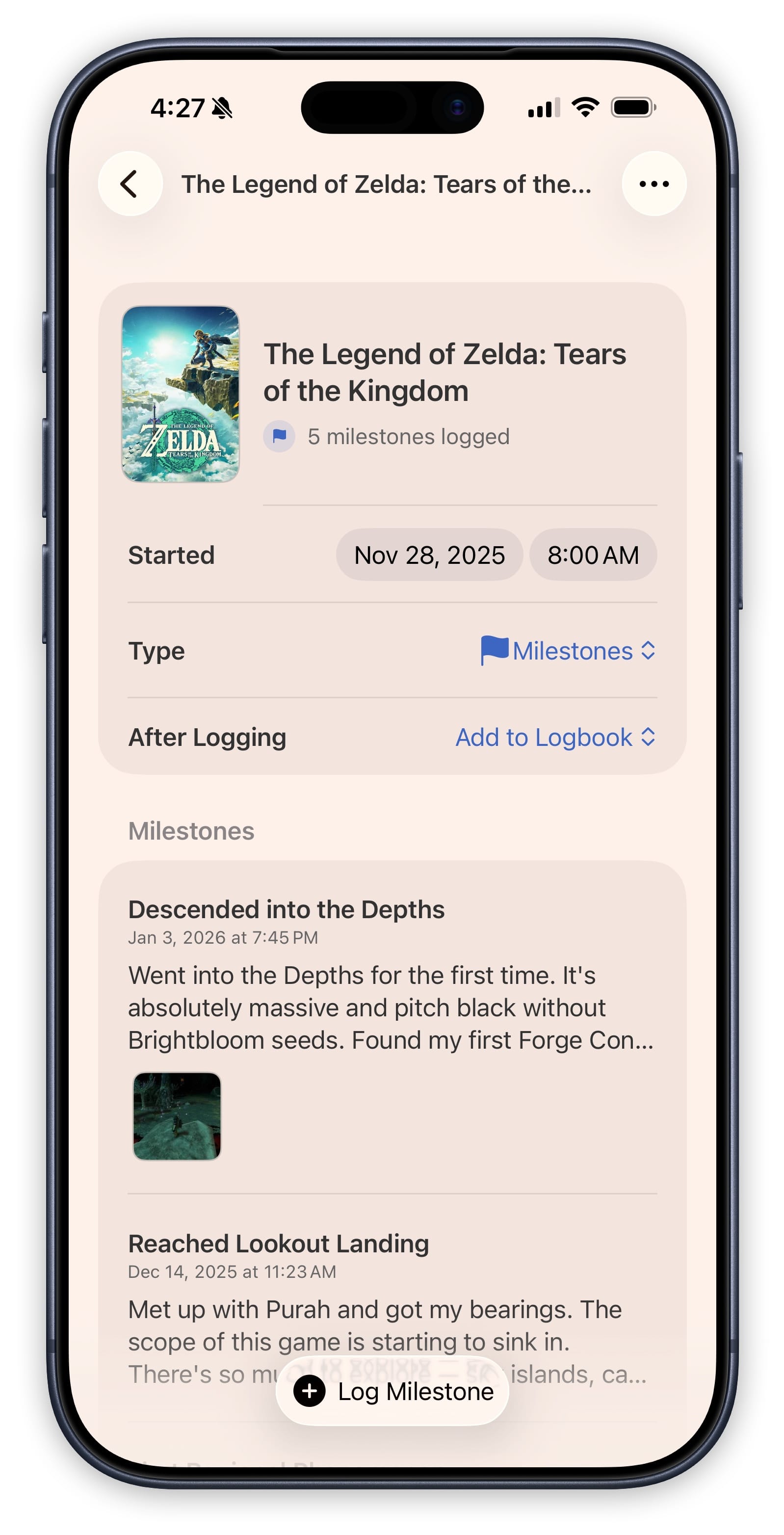
Keep a Journal
Adds rich entries as you go. A title, a date, notes, and photos. If you are working through a video game or exploring a new album, this is the mode that captures how your experience evolves over time.
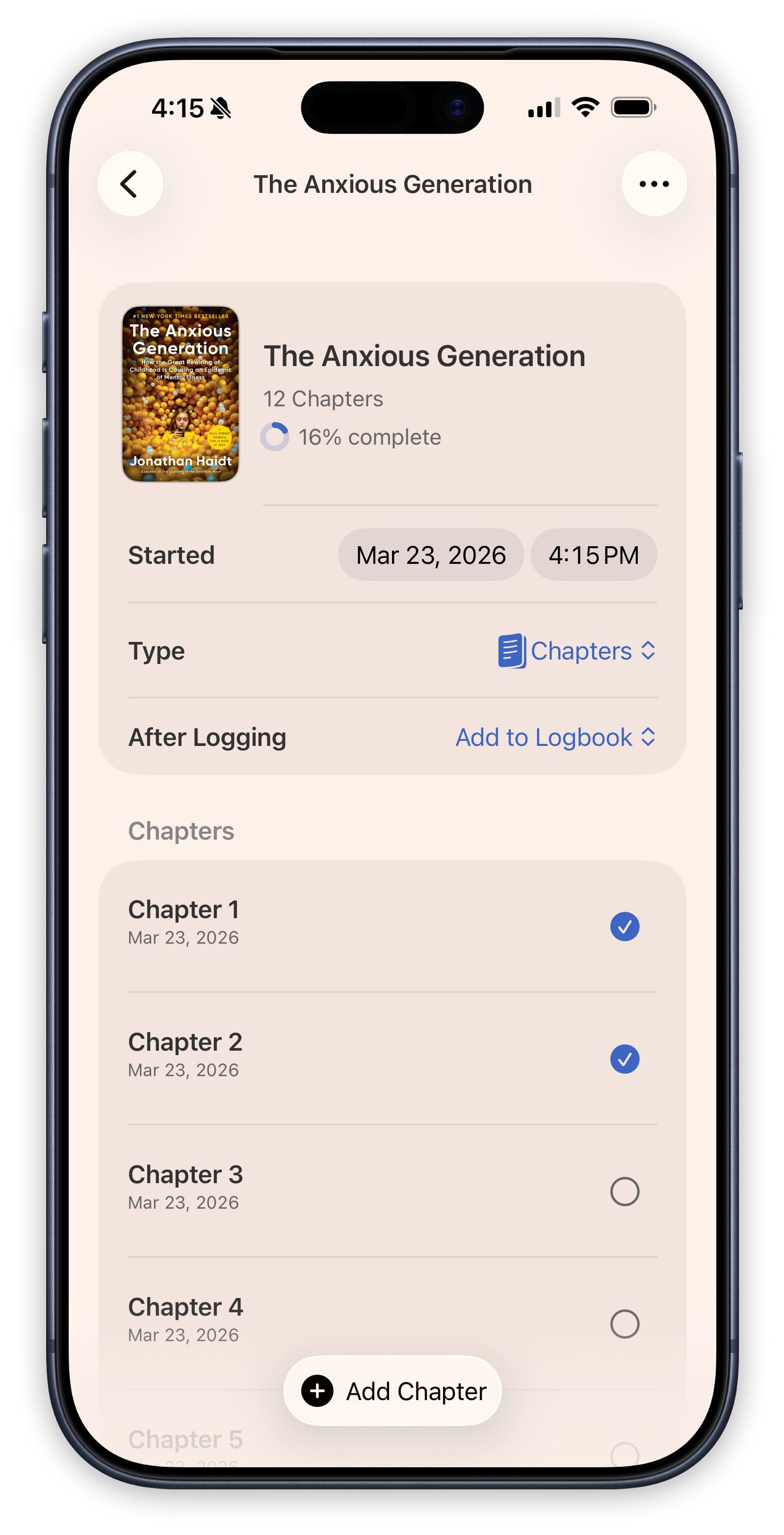
Check Things Off
This is how TV shows work. Create checkpoints upfront — chapters, levels, bosses — and check them off as you complete them. Bulk-create numbered checkpoints in seconds. Skip items you want to bypass without breaking your percentage.
Every Episode, Already There.
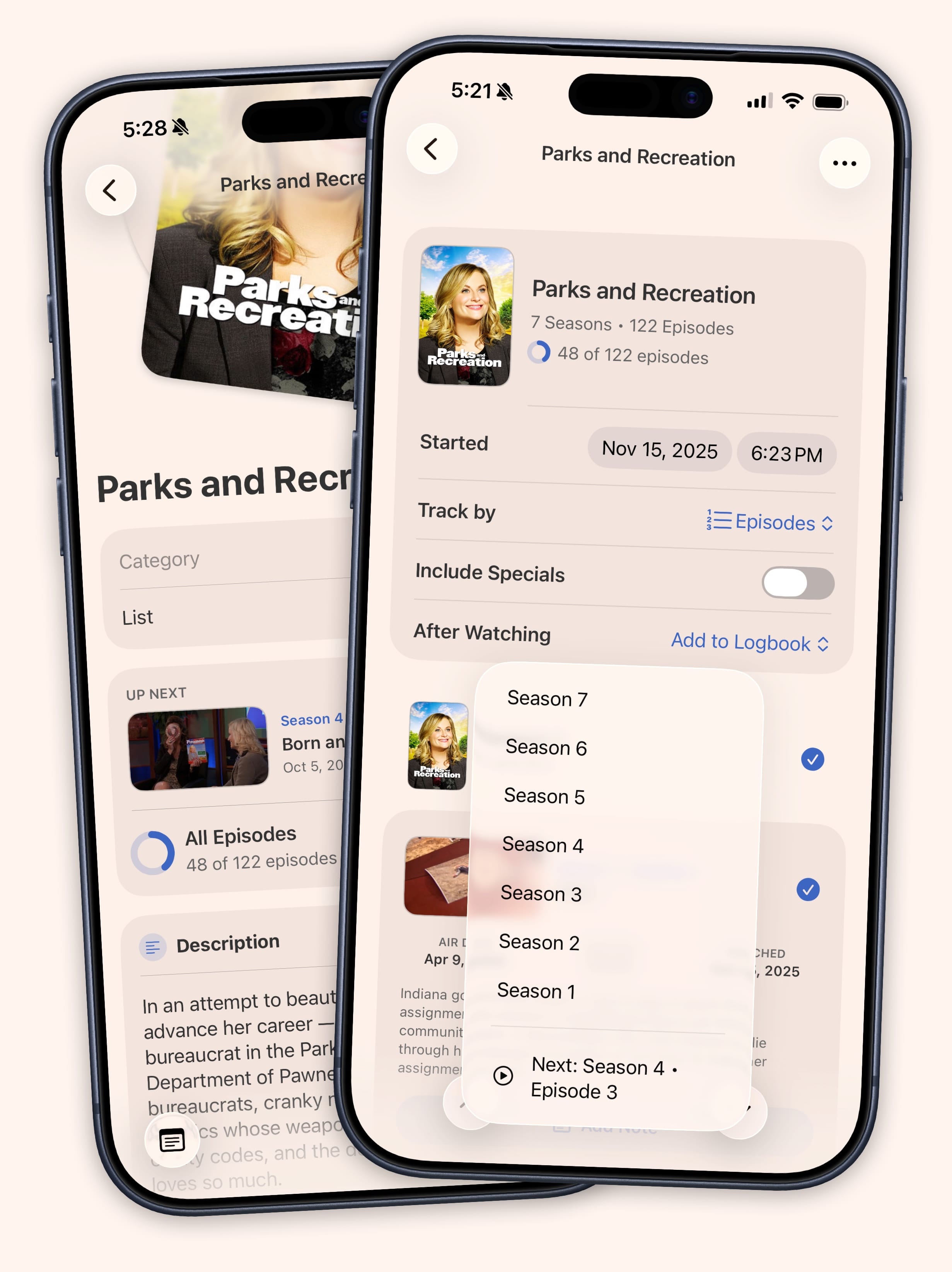
Add any TV show and Sofa fetches every episode automatically. Tap "Start Tracking" and you get a full episode list organized by season, each with a thumbnail, title, and air date. Check off episodes as you watch them. Mark an entire season with one tap. Your progress updates instantly across the app.
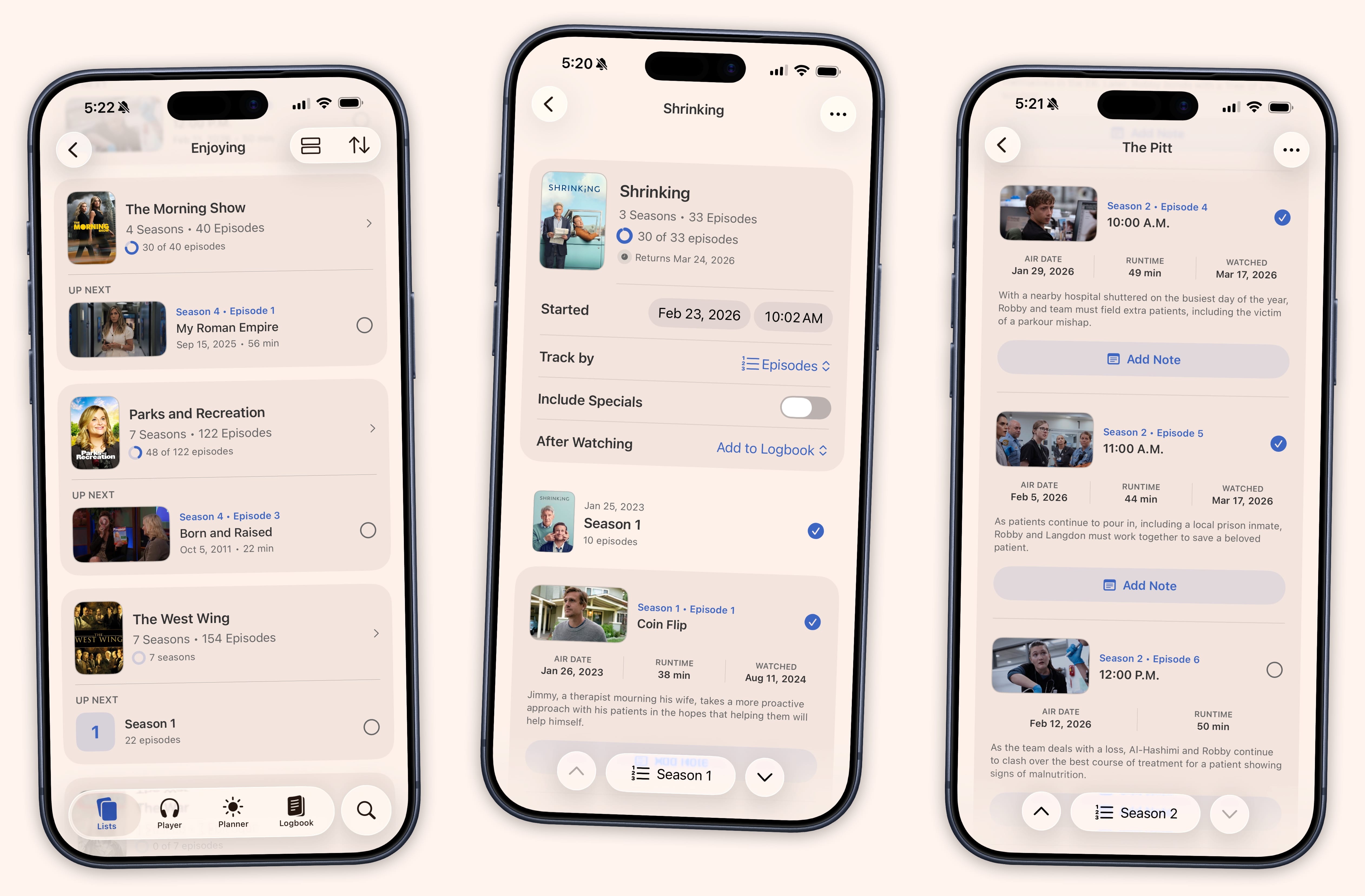
An “Enjoying” section on your home screen shows your next episode with a thumbnail and a one-tap checkbox. Check it off right there and the card transitions to show the next one. Finish a series and Sofa watches in the background. When a new season drops, the show reappears with a count of new episodes waiting for you.
Need to catch up? Long-press any episode and choose "Mark All Up to Here." Binged a season last weekend without tracking? Use "Mark Season as Watched with Date" to set the actual date. Sofa keeps your timeline accurate even when you are tracking after the fact.
Everything You're Enjoying, in One Place.
Your home screen surfaces a unified view of everything you're currently tracking. No need to dig through your lists.
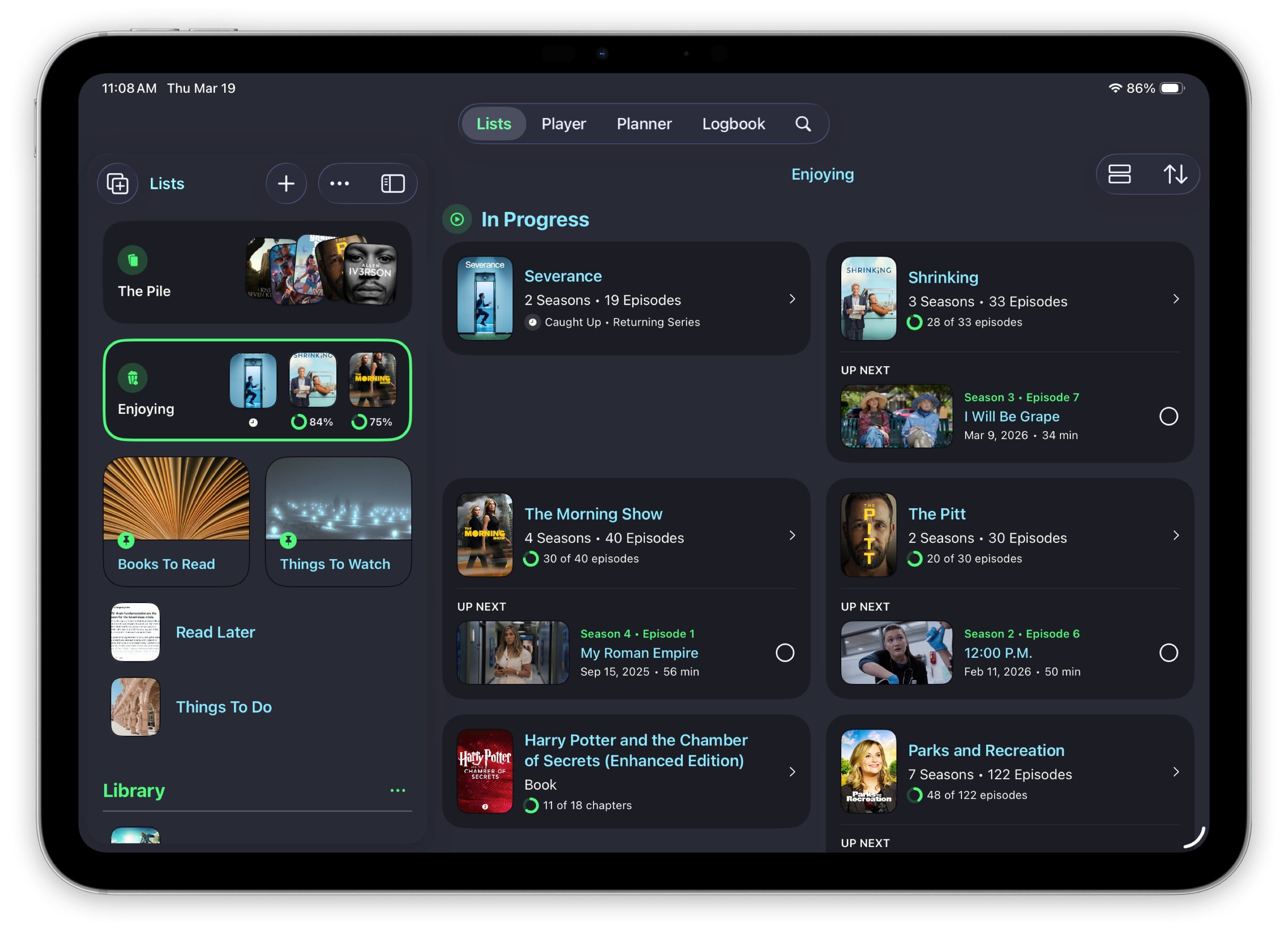
An “Enjoying” section shows your active TV shows with episode thumbnails, progress rings, and one-tap checkboxes. Check off an episode right there and the card transitions to show the next one. An In Progress section surfaces the books, games, and albums you're working through, each with its own progress indicator.
Sofa keeps watching even after you finish. When a completed show gets a new season, it reappears on your home screen with a count of new episodes waiting for you.
And So Much More.
- Widgets
- Progress rings and cover art on your home screen and lock screen. See where you are without opening the app.
- Shortcuts & Siri
- Mark episodes watched, update page counts, or add journal entries with your voice — no need to unlock your phone.
- Content Categories
- Track progress across movies, TV shows, books, games, music, apps, and custom items.
- Notes
- Add personal notes to any item — thoughts, recommendations, or anything you want to remember.
- Logbook Integration
- Everything you finish flows into the Logbook automatically, building a timeline of your media history.
- iCloud Sync
- Your library stays in sync across iPhone, iPad, Mac, and Apple Vision Pro.