Creating and Managing Tasks
Last Updated:
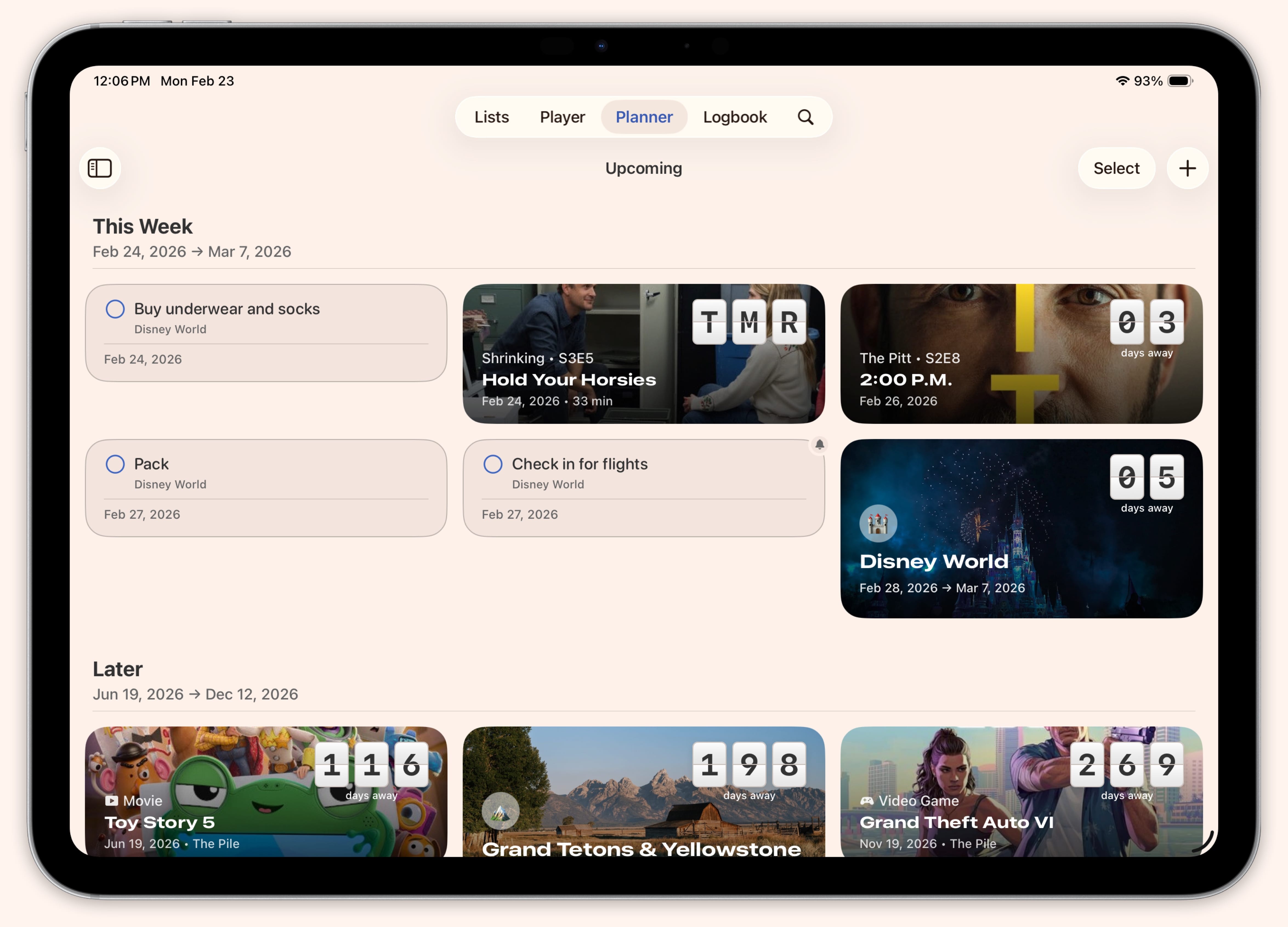
Tasks in the Planner help you keep track of things you need to do — whether they’re tied to an event or standing on their own.
Creating a Task
- Open the Planner tab
- Tap the + button
- Select “Task”
- Give it a title and optionally set dates, priority, and more
Task Options
Each task can include:
- Date — Schedule when work begins and when it’s due
- Location — Add a place if the task is location-specific
- Reminders — Set multiple reminders (at time, 15 min before, 1 hour before, 1 day before, or custom)
- Attachments — Add files, photos, or documents
Task Organization
Tasks are grouped into three sections:
- Scheduled — Tasks with dates, sorted chronologically
- Anytime — Tasks without dates, ready to do whenever
- Completed — Finished tasks (toggle visibility with “Show Completed”)
Tap any task to toggle it as complete. Pin important tasks to keep them visible at the top.
Event Tasks vs Standalone Tasks
Tasks can be created inside an event (great for trip prep like “Book hotel” or “Pack bags”) or as standalone items in the Planner. Both work the same way — event tasks just live within their event’s context.